✔️ Save & Load Graph
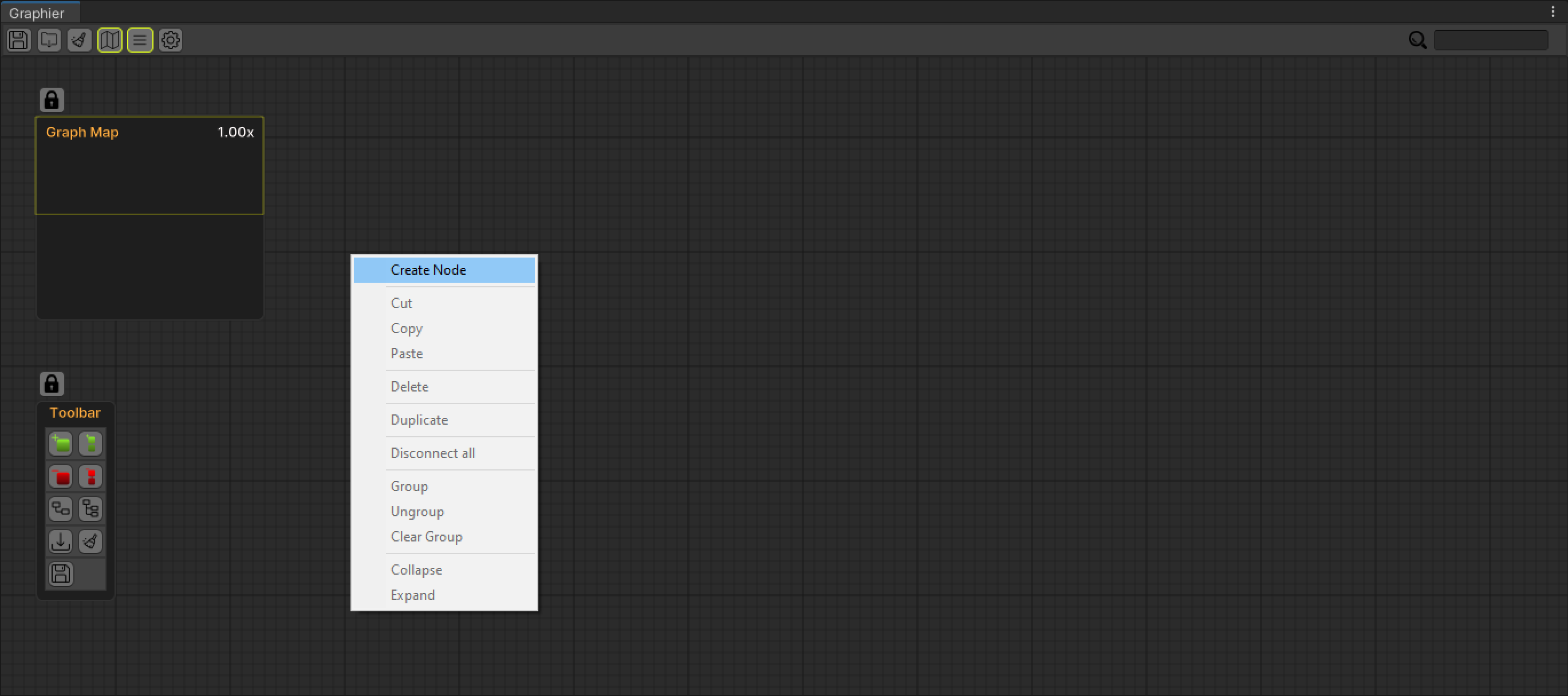
First open the Contextual Menu by right clicking on an empty spot in the graph.
And from there open the search window by clicking on the Create Node tab.
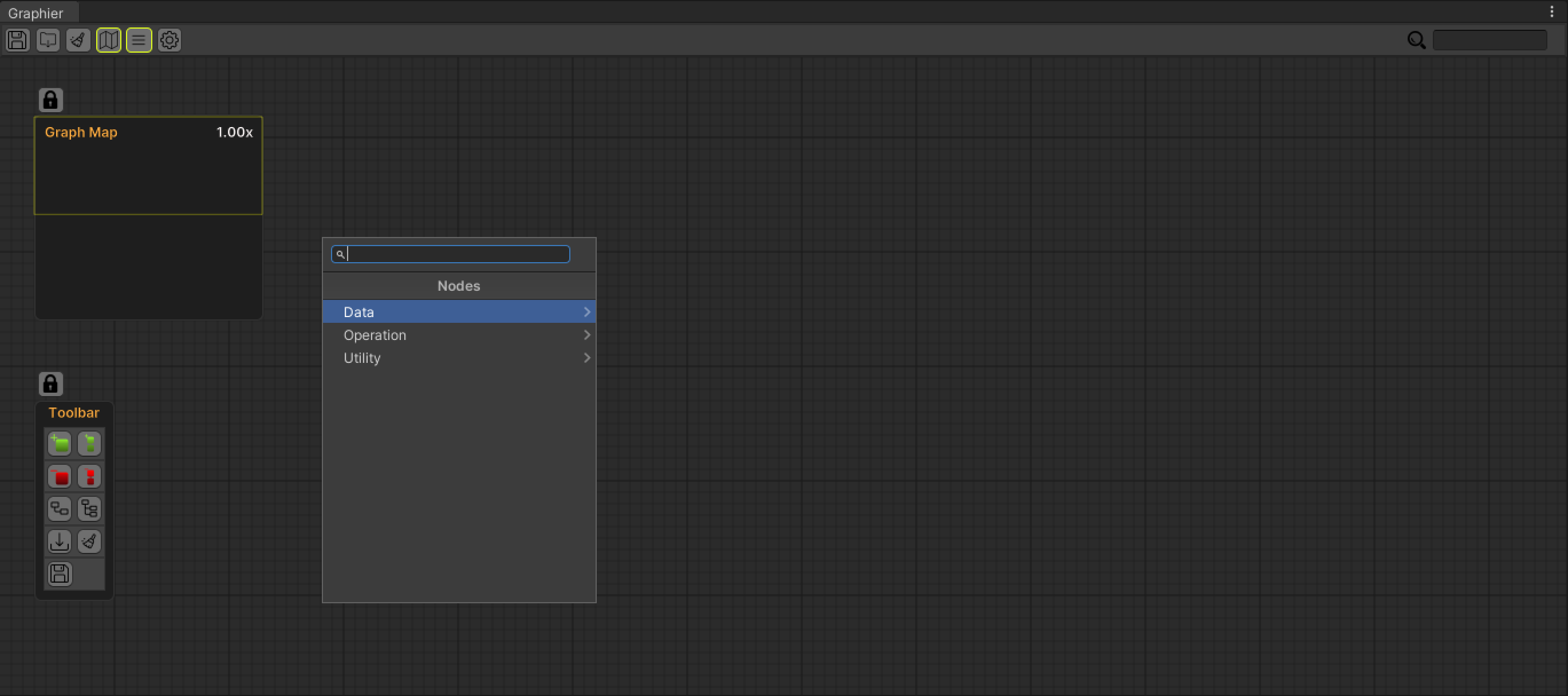
After the Search Window opens, click on the Data tab to open the nodes in the data tab.
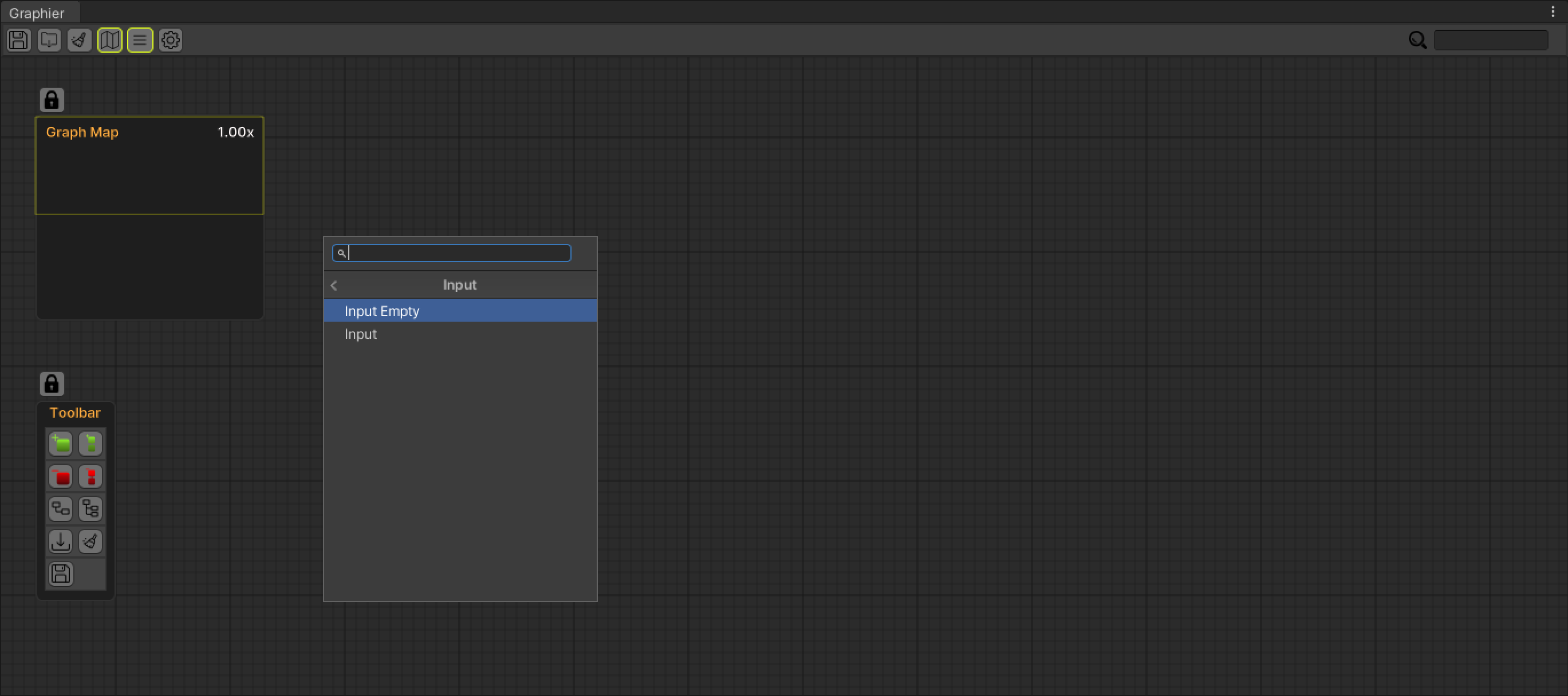
Then open input nodes by pressing the Input tab.
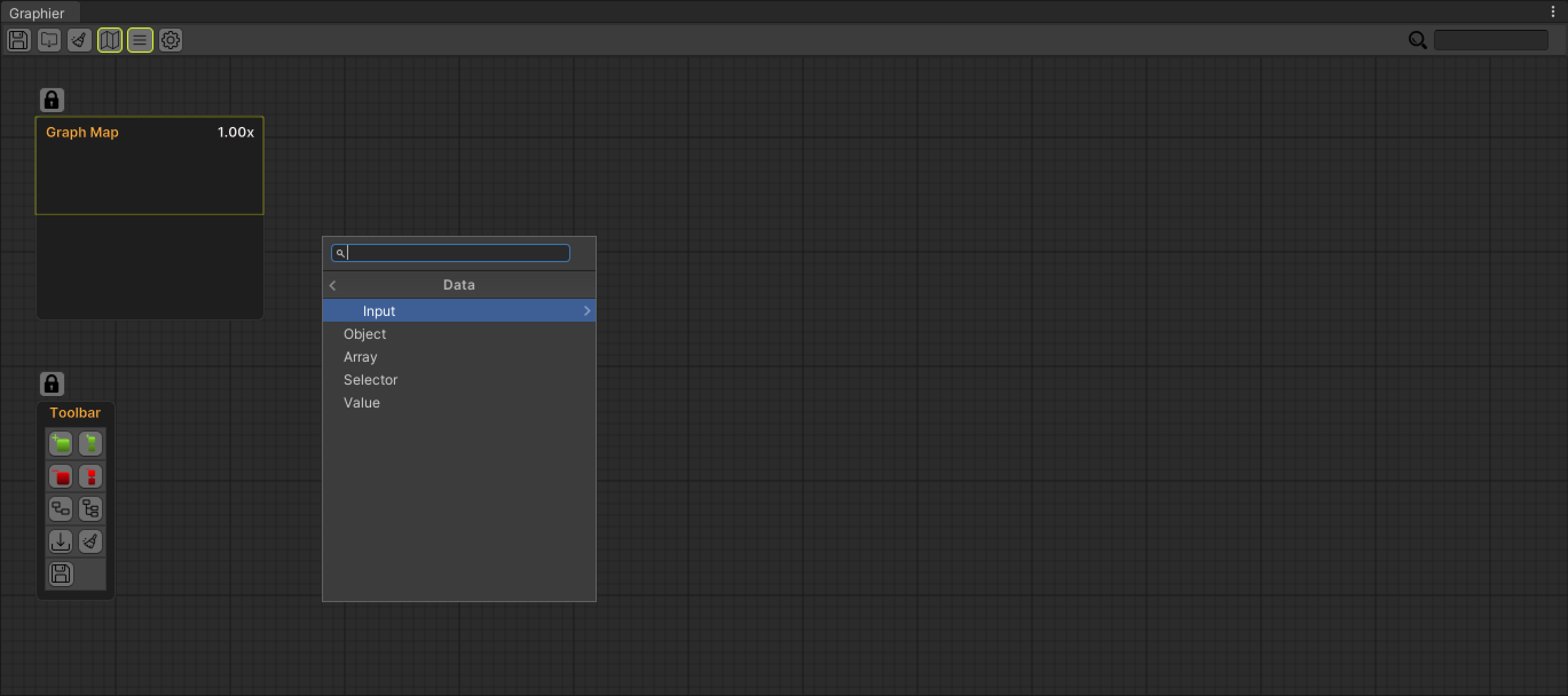
In this tab you can create an empty Input or an Input node containing a sample json data.
Go ahead and create an empty Input Node.
Our empty Input Node has been created, now let's fill it.
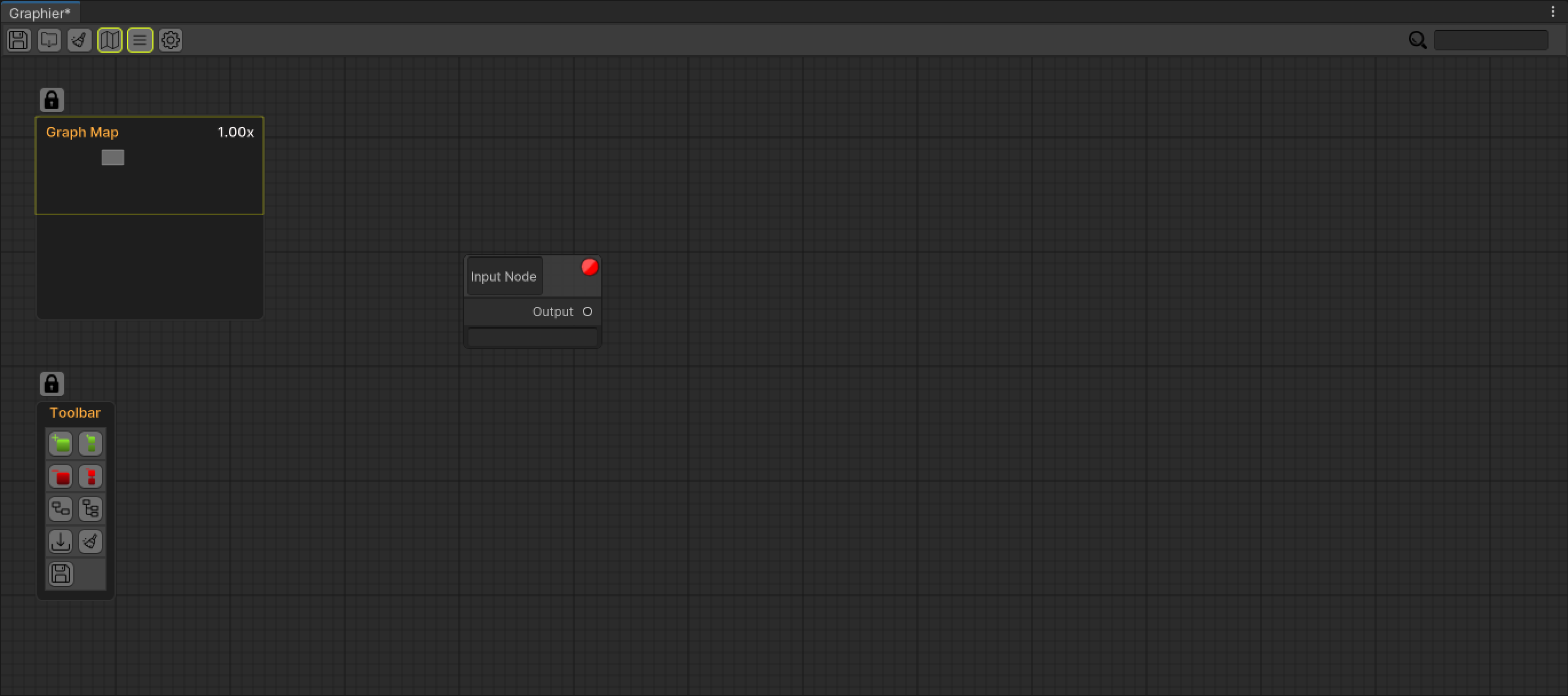
Paste any JSON data you want into the empty Input Node.
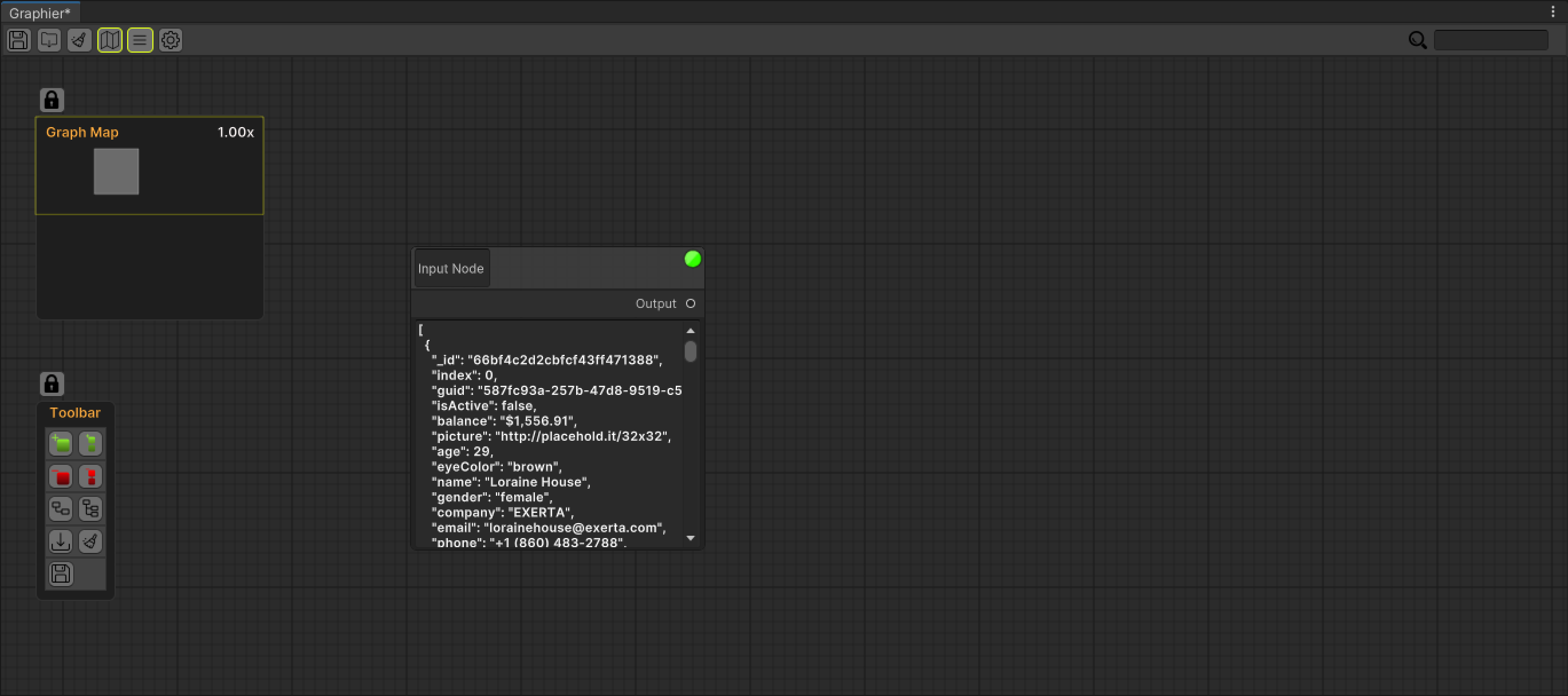
Then select the Input Node we created and press the Create All Nodes button in the Node Toolbar.
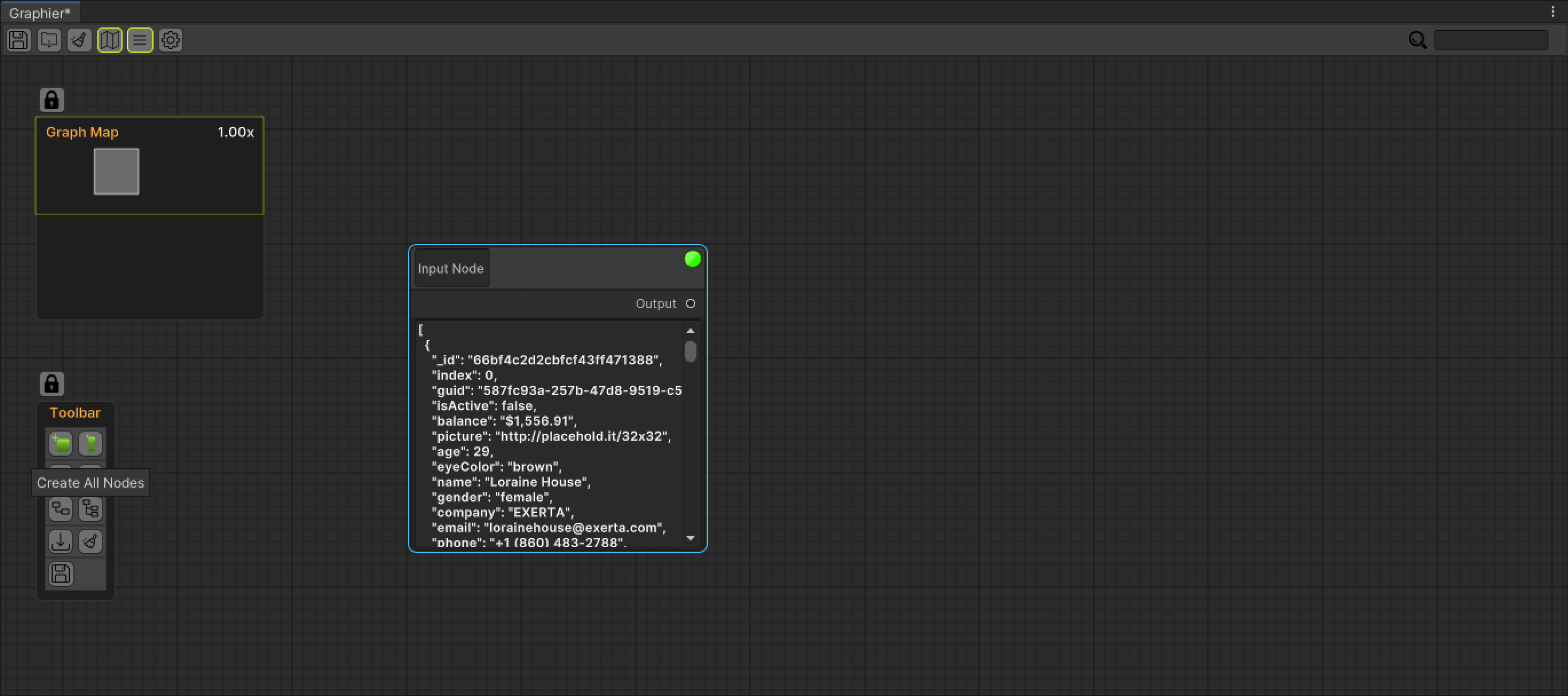
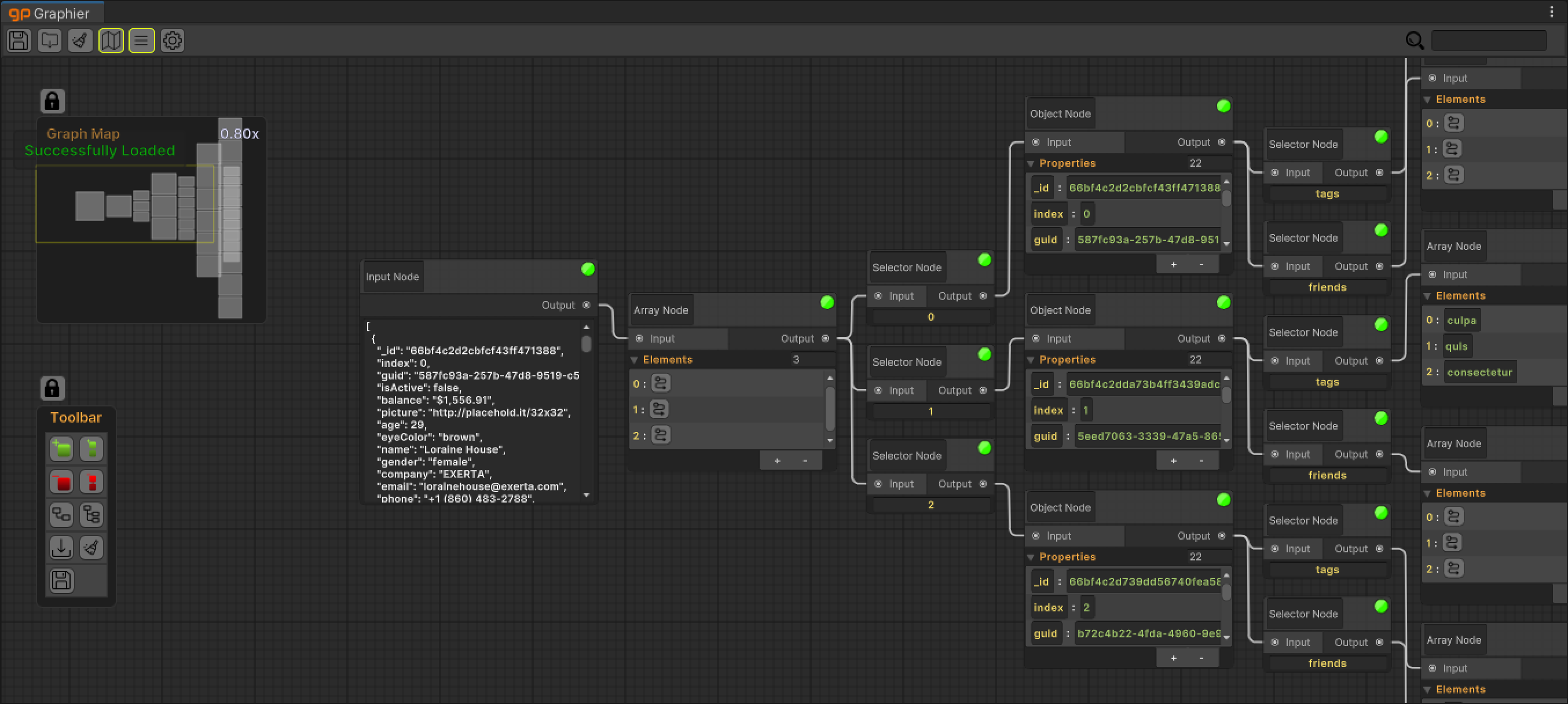
All nodes and property fields in our data have been created, now it's time to organize them.
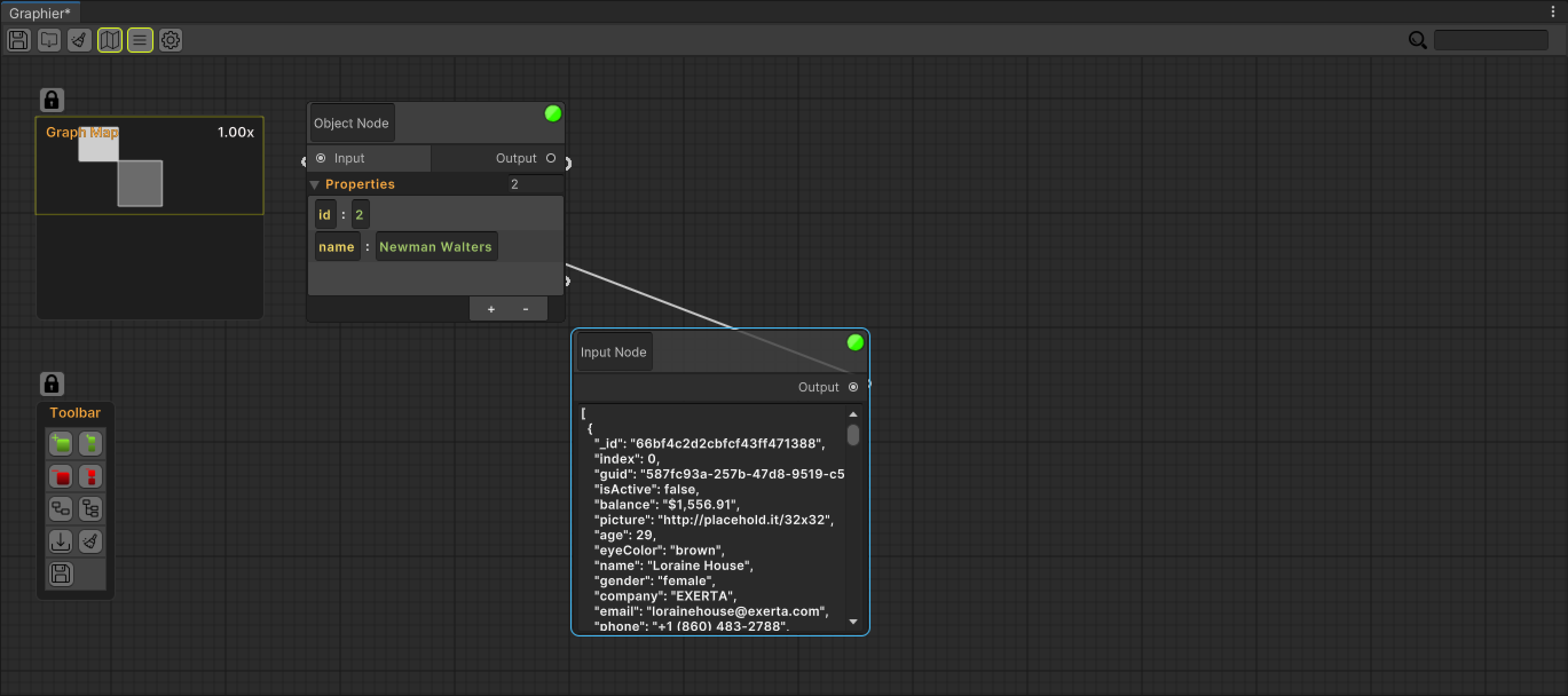
Then select the Input Node we created again and press the Organize All Nodes button in the Node Toolbar.
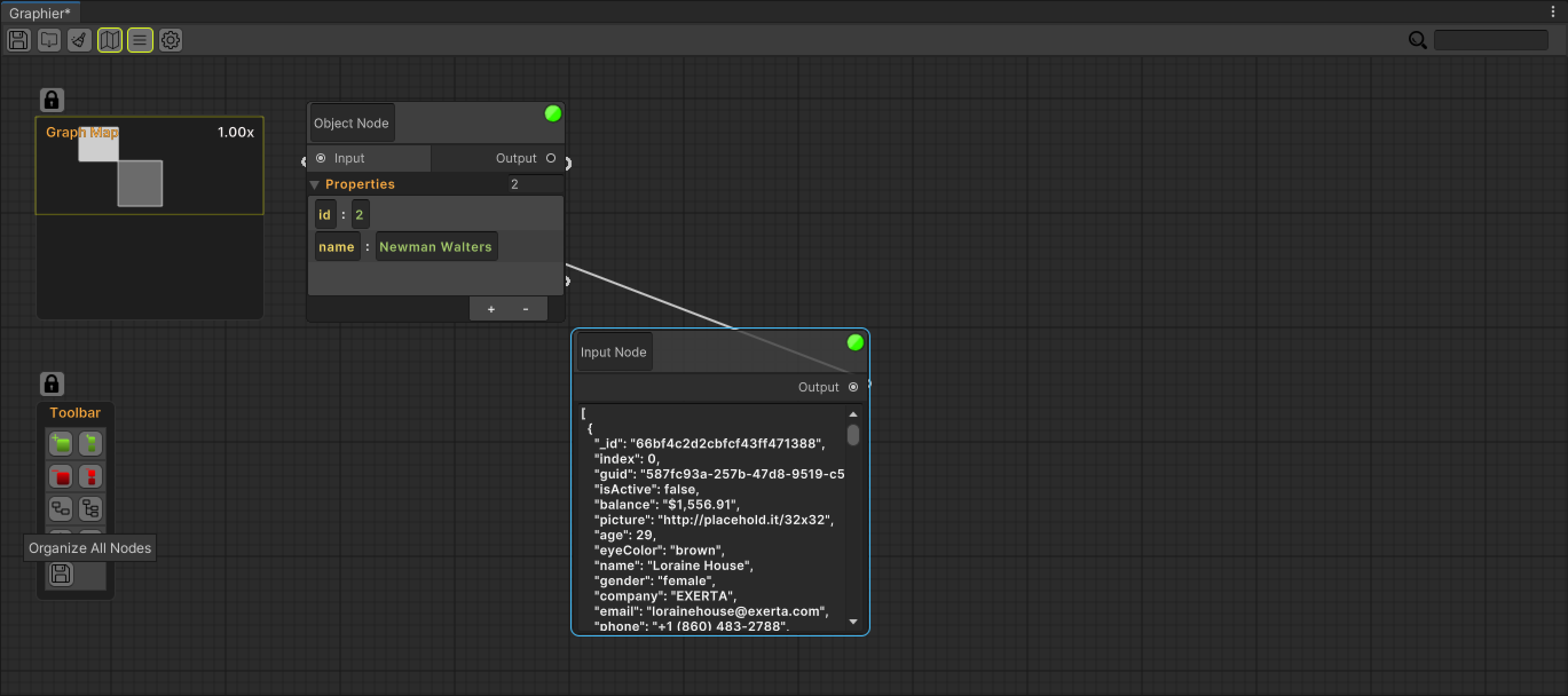
Now all our data is created and organized.
Now we can edit our data as we want from the fields created.
Go ahead and change some fields
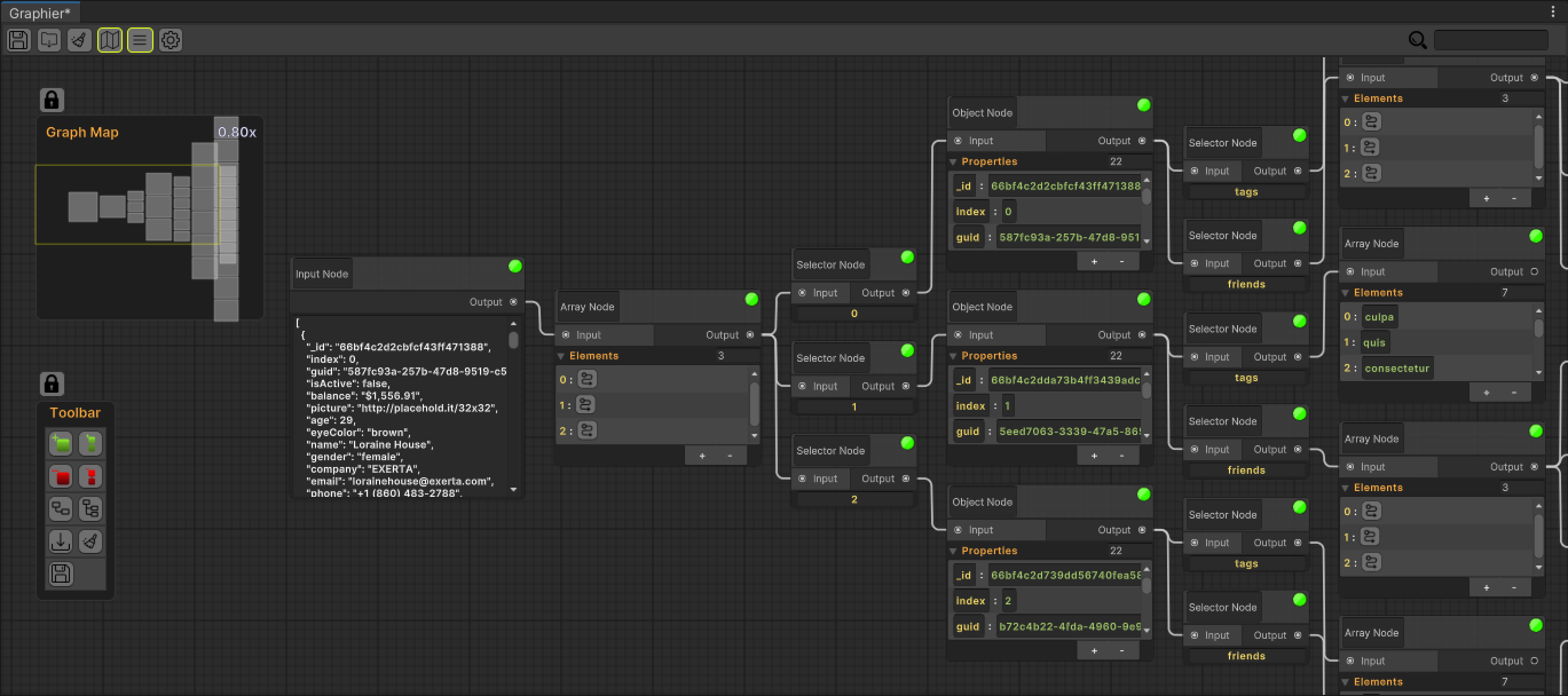
Then press the existing Save Icon in the Editor Toolbar.
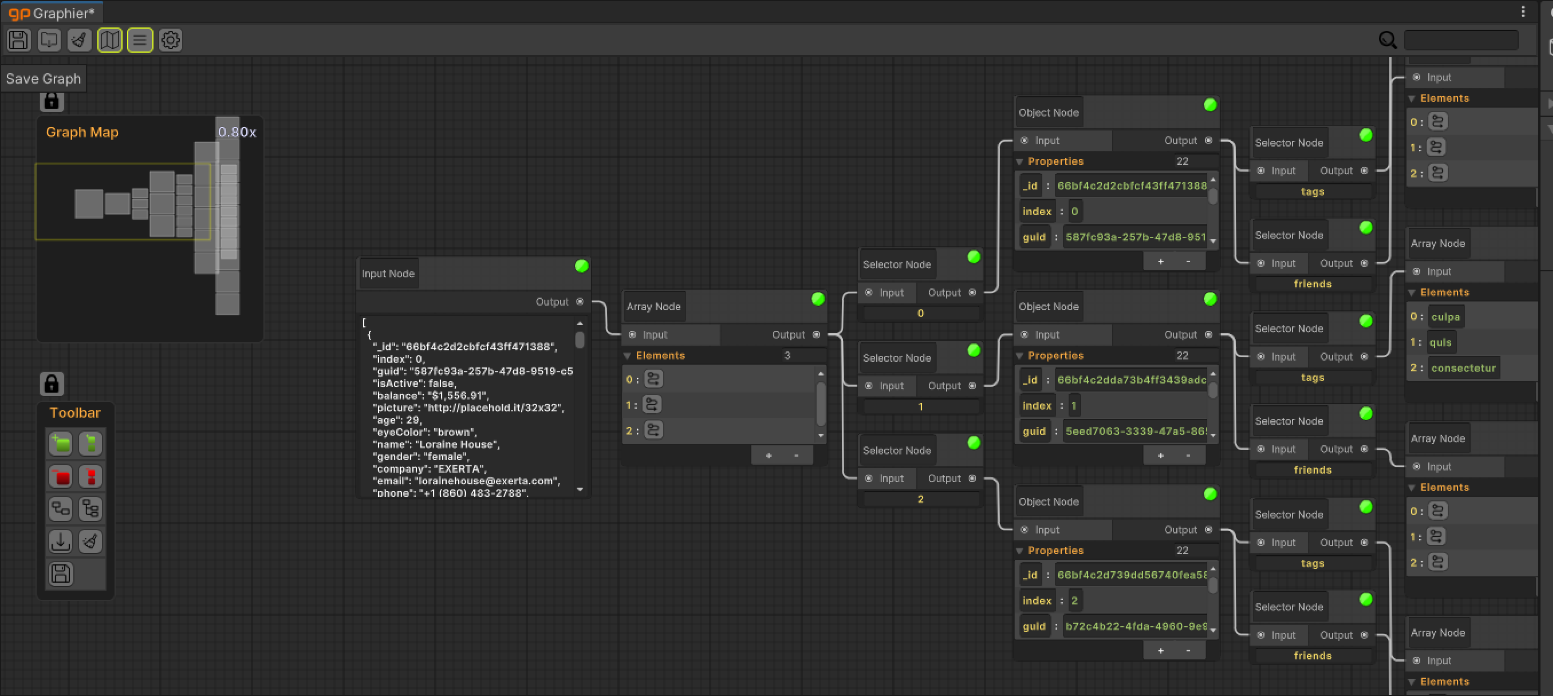
File Explorer will then open you to the default save location save your graph in the desired location and with the desired name.
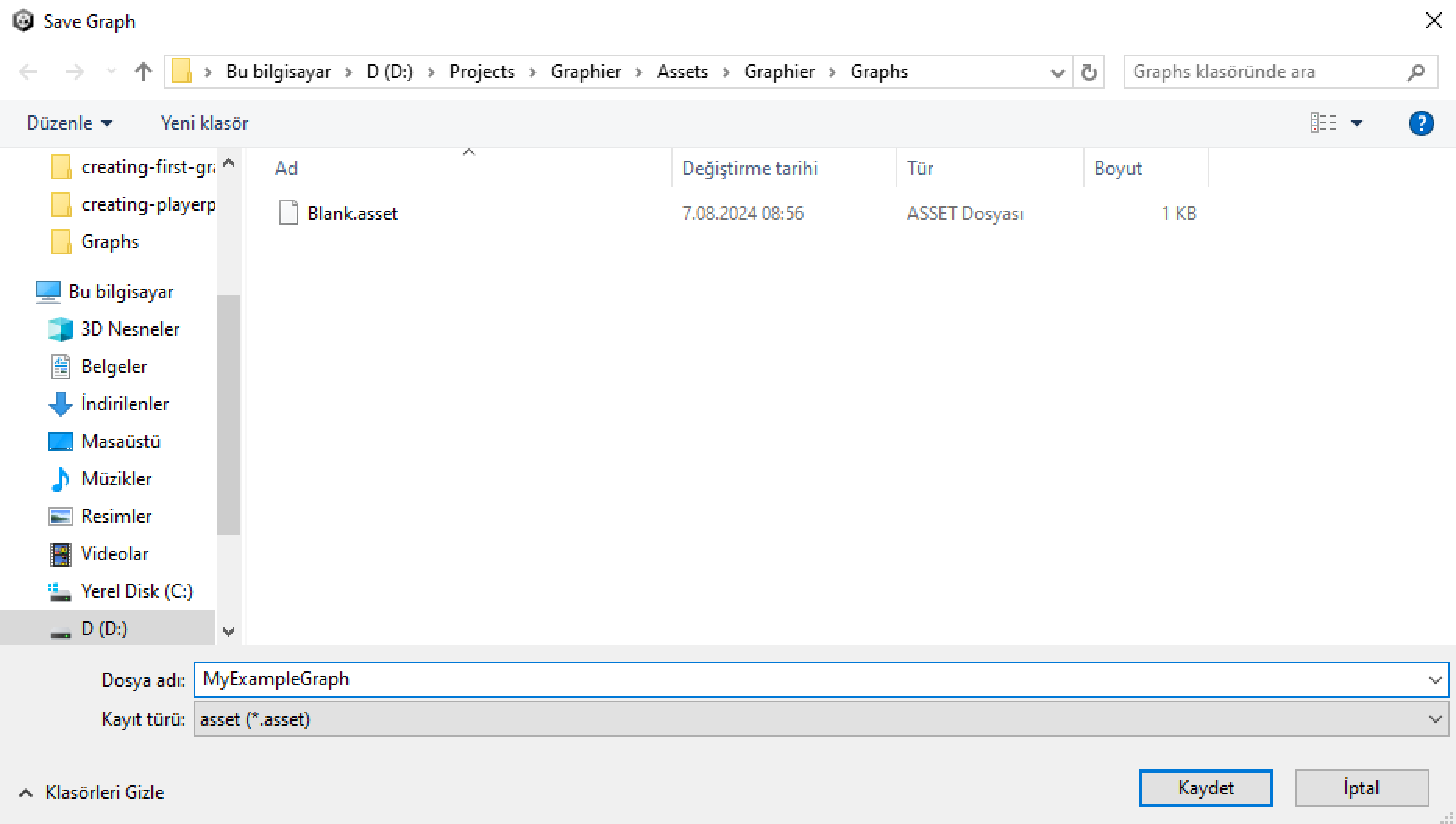
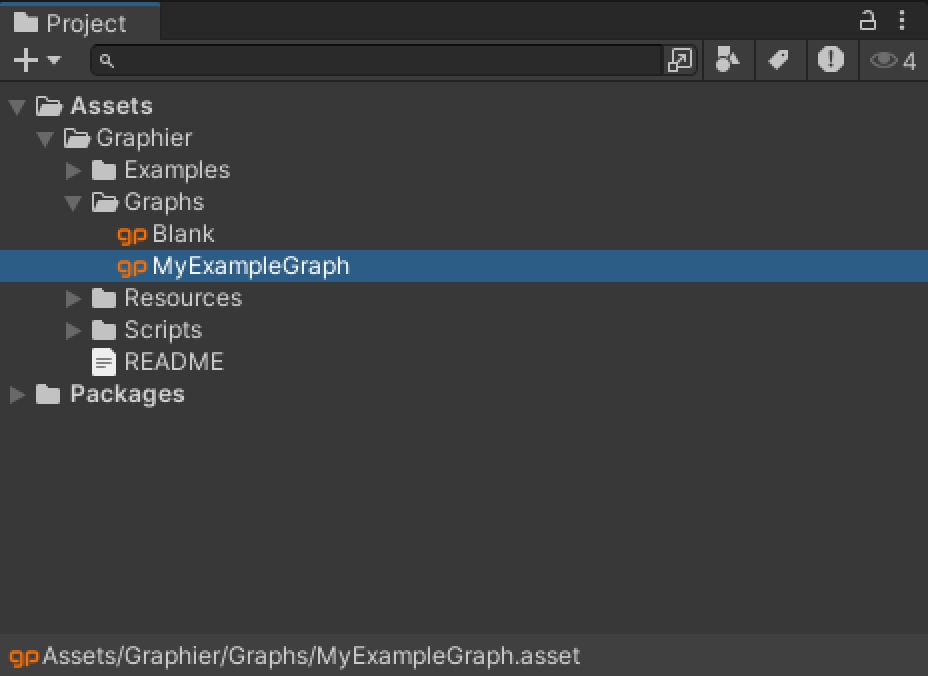
Then a Scriptable Object - Graph file will be created in the directory and name you specify in the project.
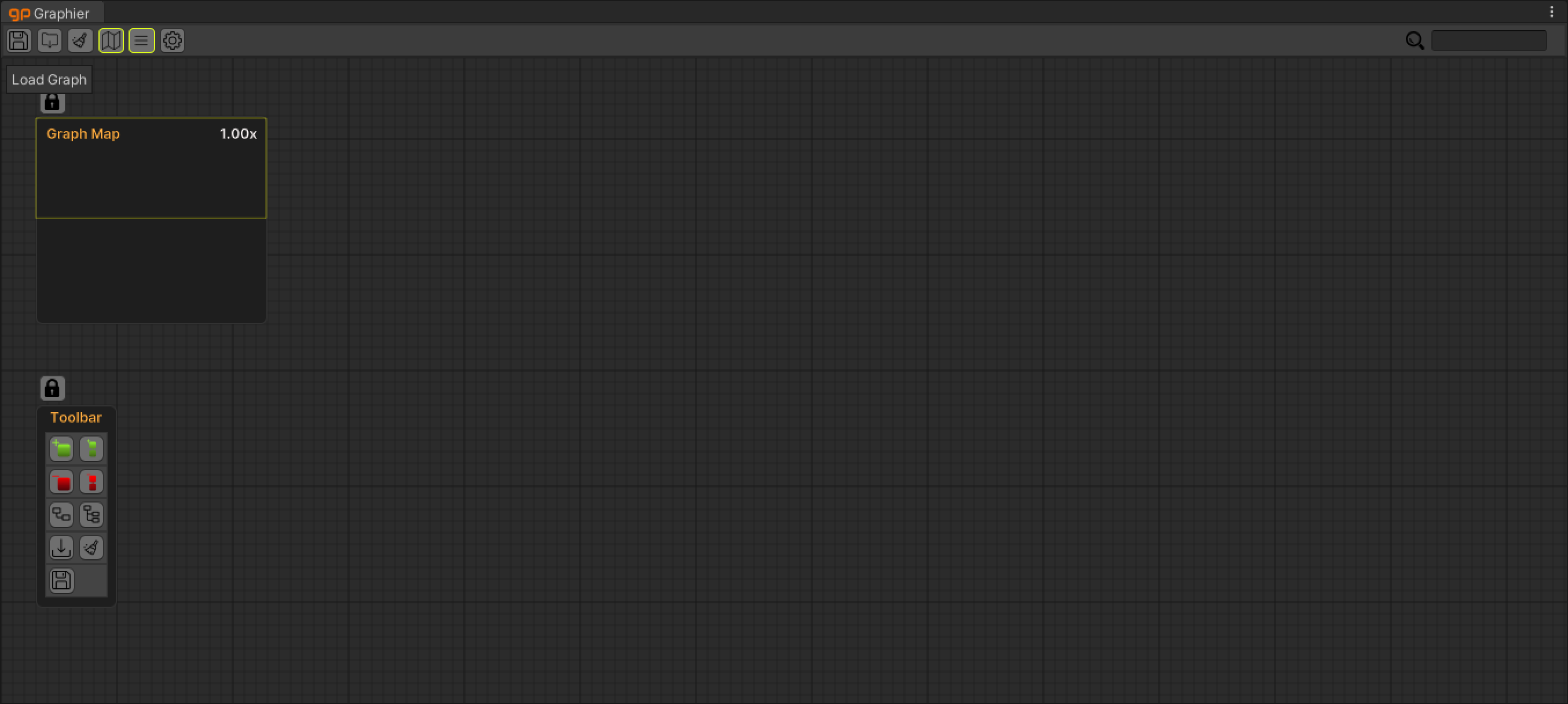
Then, to open the same graph at any time, open the Editor and press the File Import Icon in the Editor Toolbar.
Select the Graph file you want to open
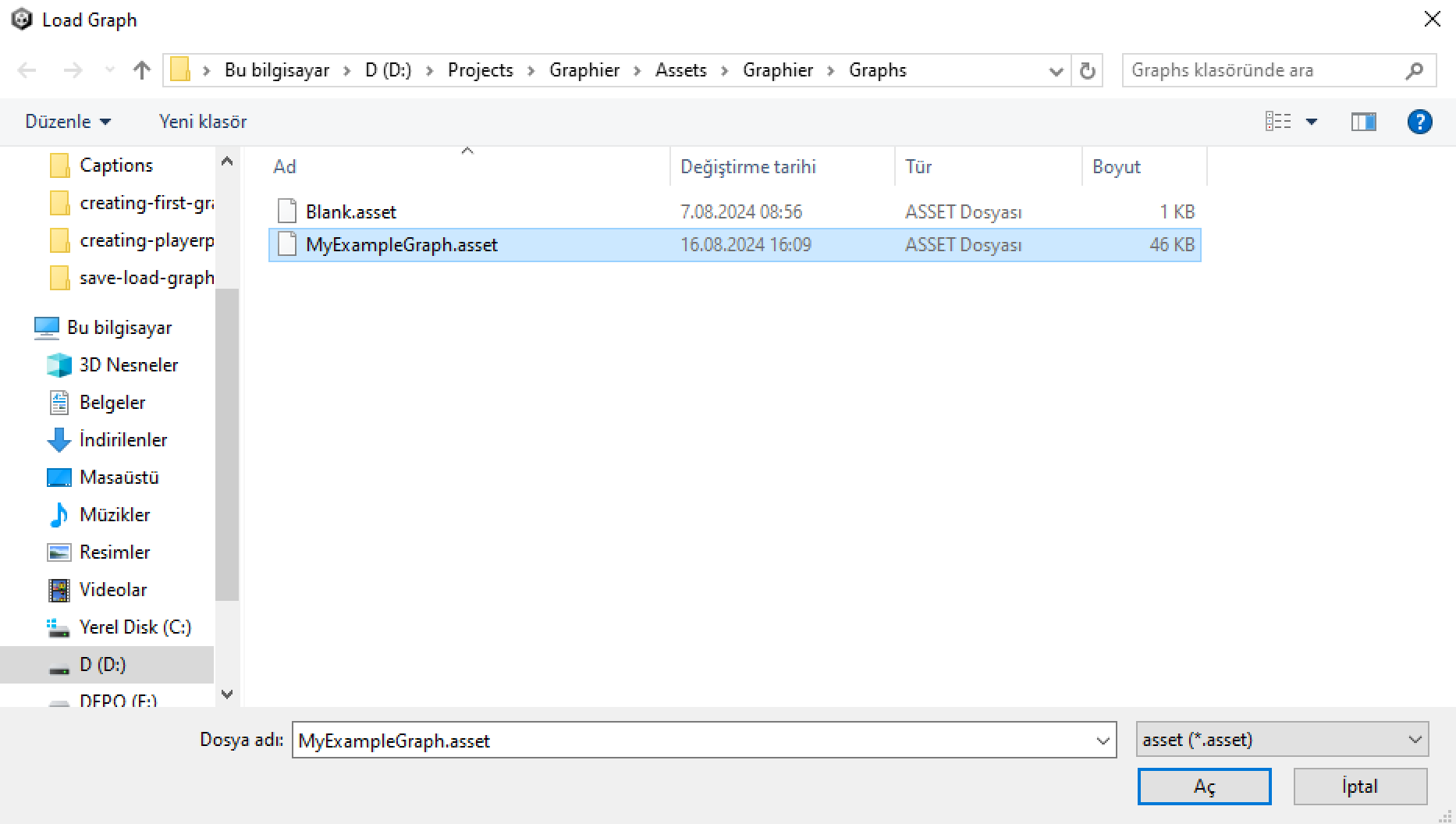
Your old graph is now loaded and ready.